THE PLANNING GUIDES · WEBSITE DESIGN & DEVELOPMENT
Shape your website in the Website Studio
Explore a working concept or guided discovery, edit the design, review scope and send one website inquiry.
Step-by-step guide · October 20, 2026 · Screenshots of the live site
A concept preview demonstrates design possibilities. Sample businesses are fictional. Preview interactions are not production integrations, and uploaded files are not automatically transferred by a shared design link. The written proposal confirms scope, price, third-party costs and launch responsibilities.
Start at https://www.lynchvisualworks.com/website-builds
Start with the website service
See possibilities before you inquire
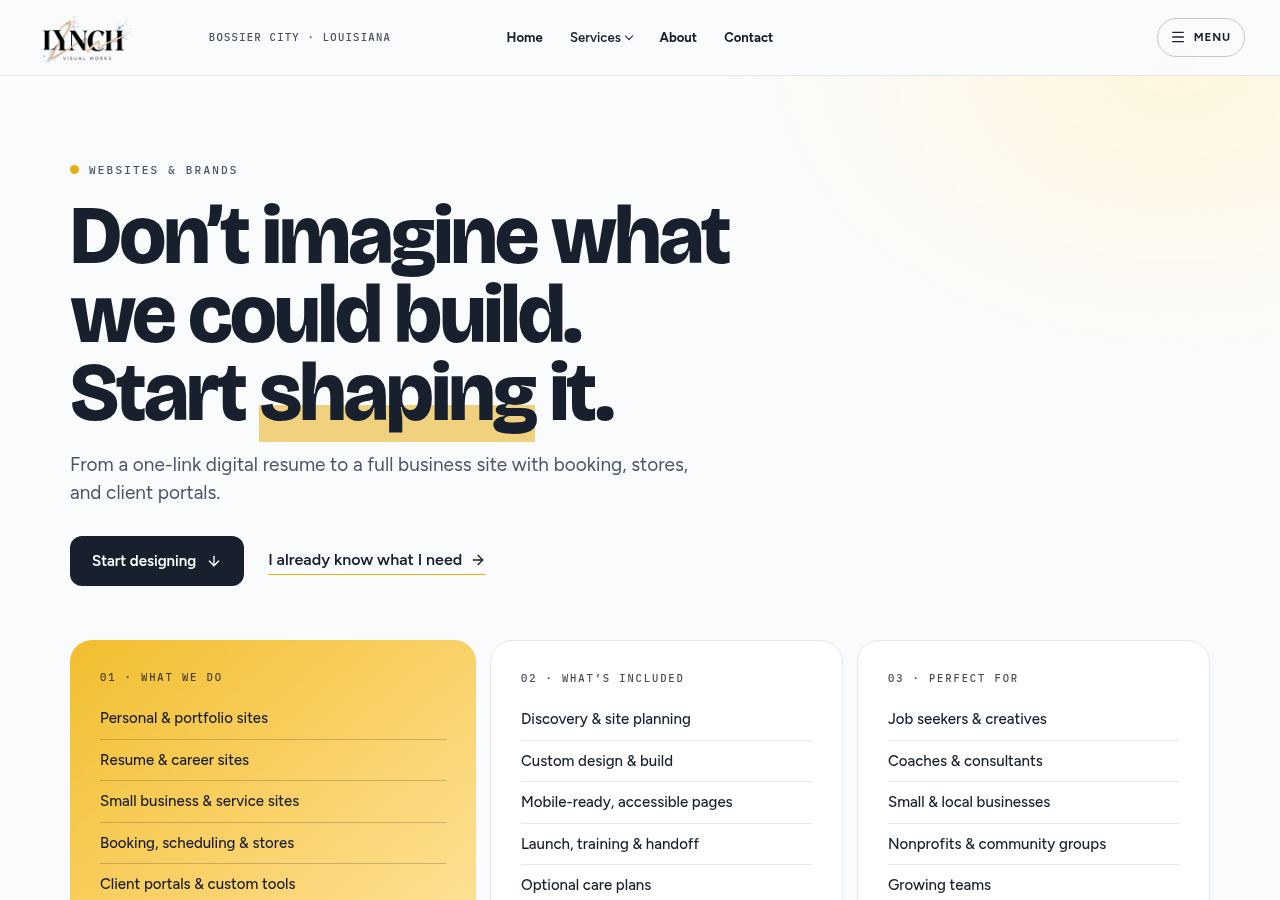
Open Website Design & Development and choose Explore website designs. You can explore a direction for a personal site, portfolio or business website without treating a concept as an already commissioned build. The direct inquiry is an alternative if you prefer to talk first.
Choose one planning path; send once at the end.
Pick your starting point
A working concept or guided discovery
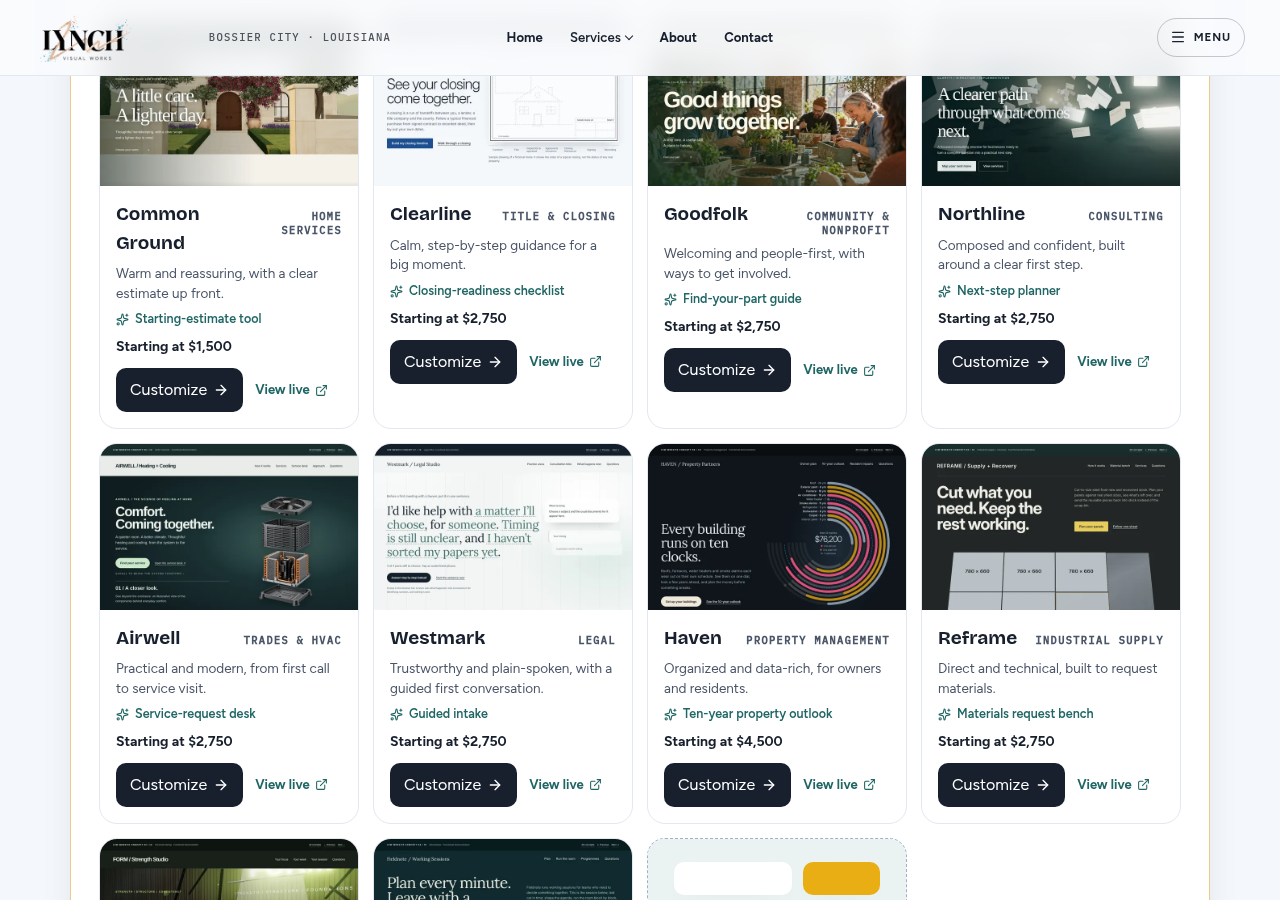
Browse the ten concept websites. Choose a business type to rank relevant starting points, then Customize a concept. Alternatively, choose Build from your business and complete Industry, Services, Business, Goals, Features, Details, About you and Layout. You can skip optional questions where offered.
Concept businesses and their sample content are demonstrations, not LVW client projects.
Need help choosing?
Use the short recommendation flow
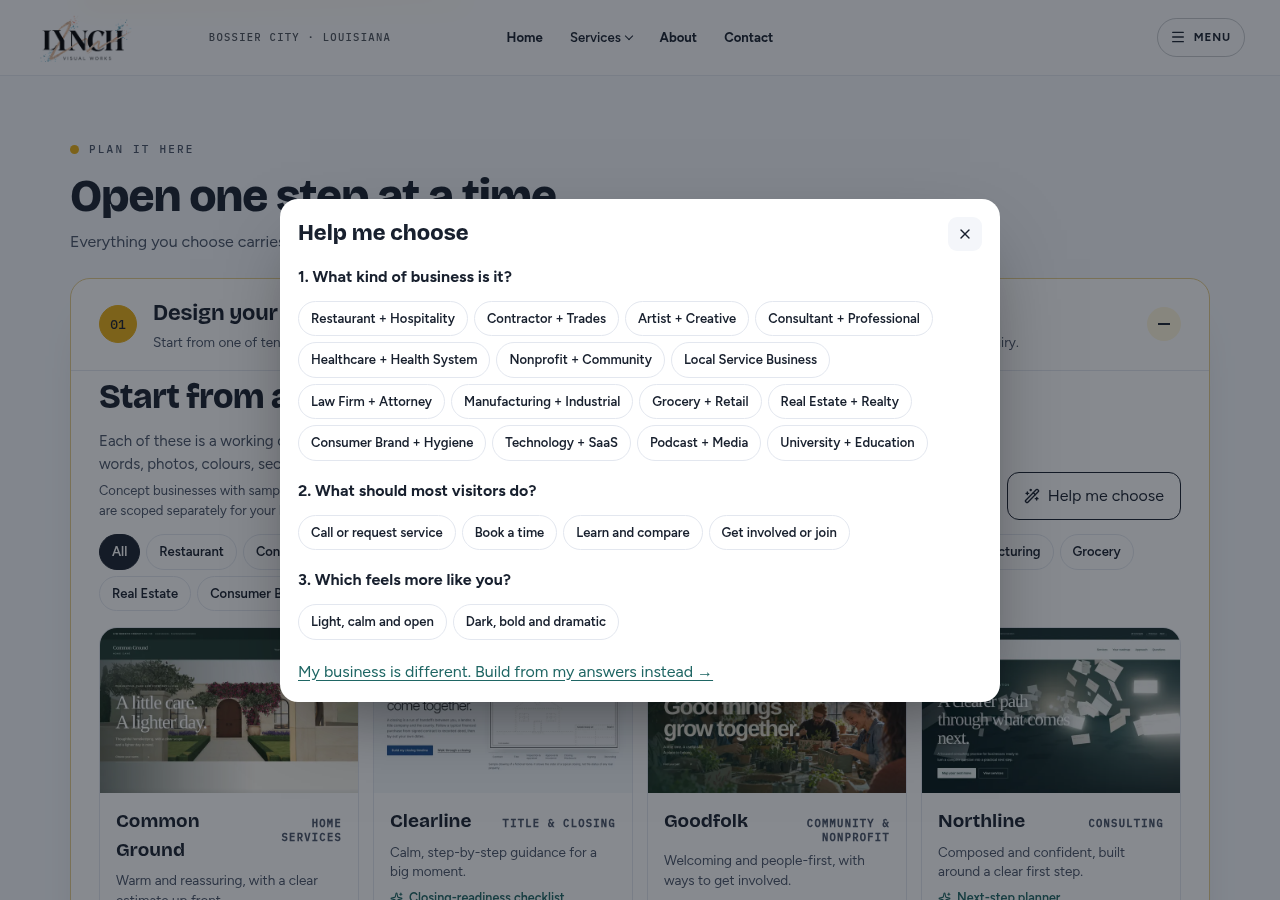
Help me choose asks about your business, the visitor action you want and your preferred visual tone. Use the recommendation as a starting point. If no concept fits, use guided discovery instead of forcing your project into the wrong example.
The best starting point supports your audience’s task.
Edit the working design
Your words, layout and content
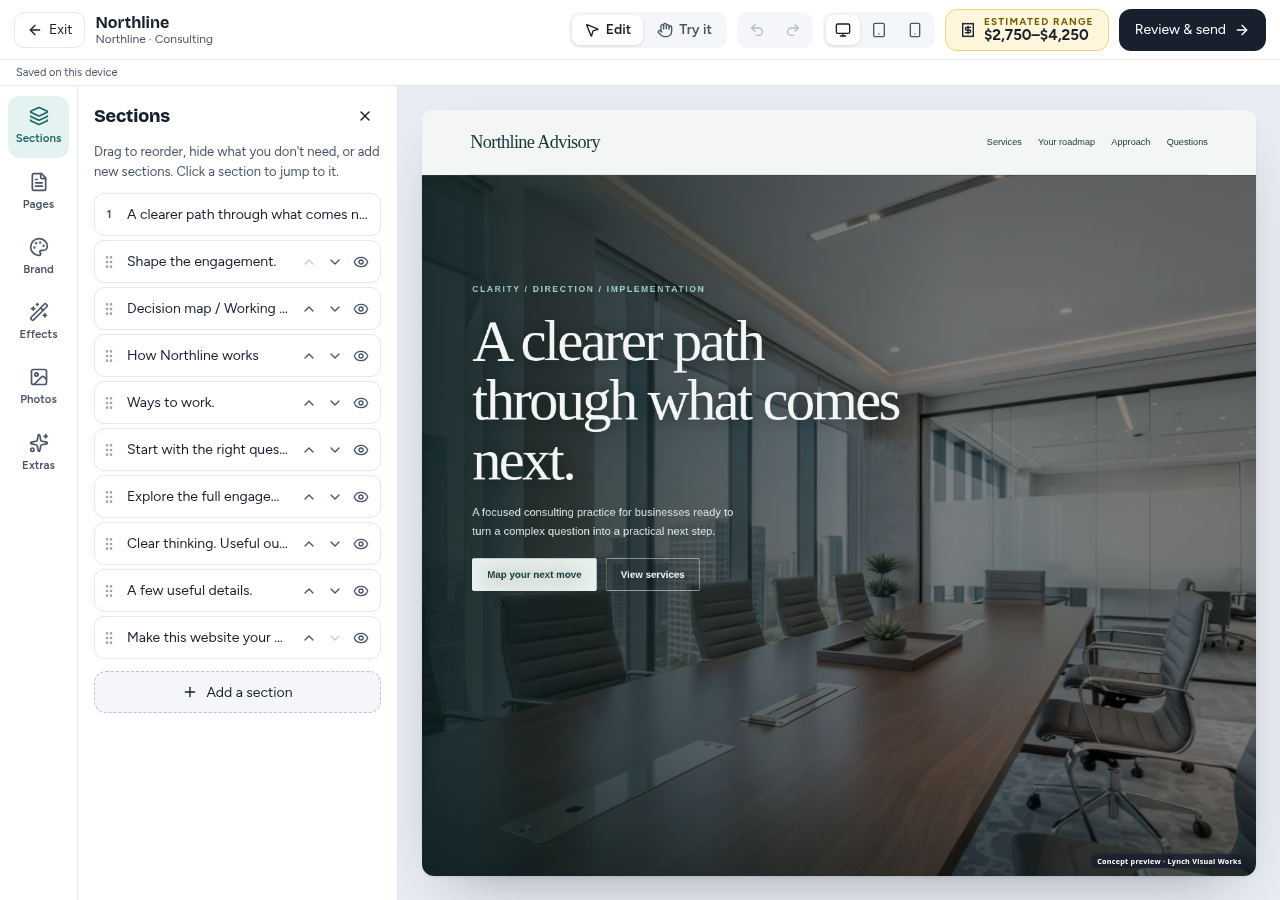
In Edit mode, select editable text in the preview to change it; select an editable image to replace it. Sections lets you add, reorder or hide content and manage available section controls. Use Try it to explore concept interactions. Forms and external destinations inside the concept do not send information or connect live systems.
This is a planning design, not a published client website.
Set the visual direction
Name, logo, colours and type
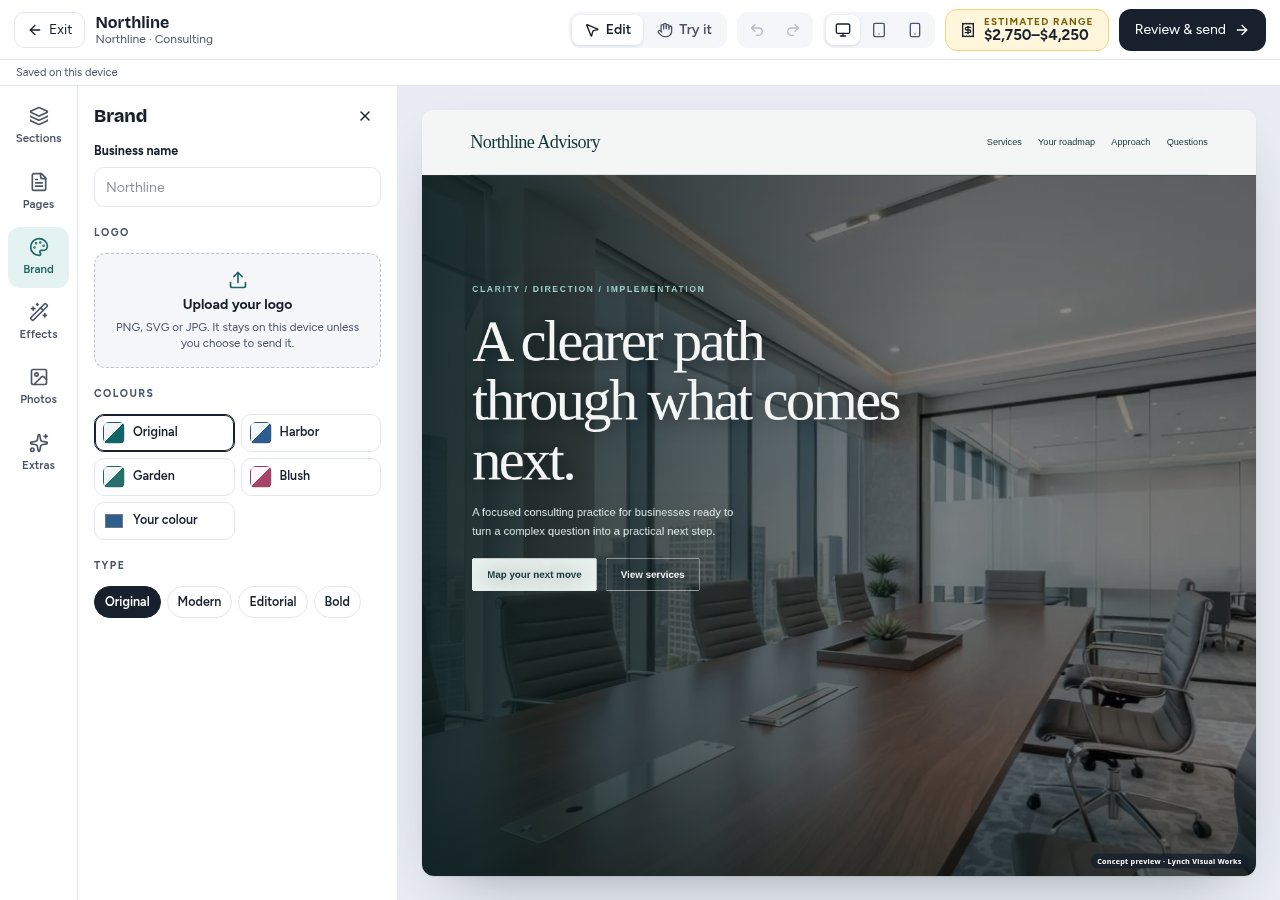
Open Brand to set the business name, add a logo, choose a palette and select typography. Uploaded assets remain device-local unless an available, explicit file-sharing path says otherwise. Use assets you are authorized to provide for the finished project.
Check readability as well as whether the colours feel right.
Plan the site structure
Tell us which pages you need
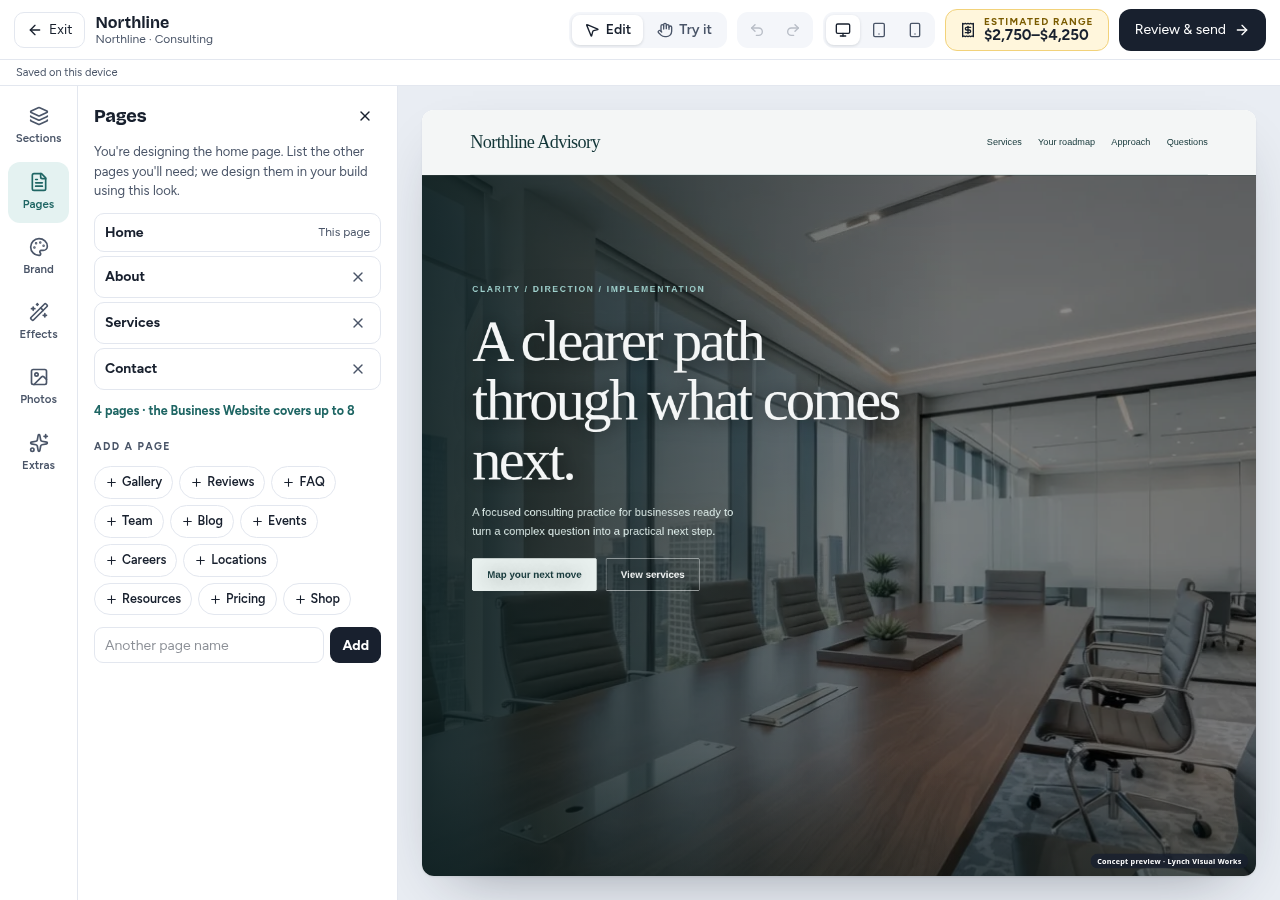
Use Pages to add the pages your audience needs and remove unnecessary ones. In Sections, shape the content within the preview. Page count and features affect the planning estimate; a larger scope may move the project to a different tier.
A requested page or integration still needs a confirmed implementation scope.
Explore motion and screen sizes
Choose effects with a purpose
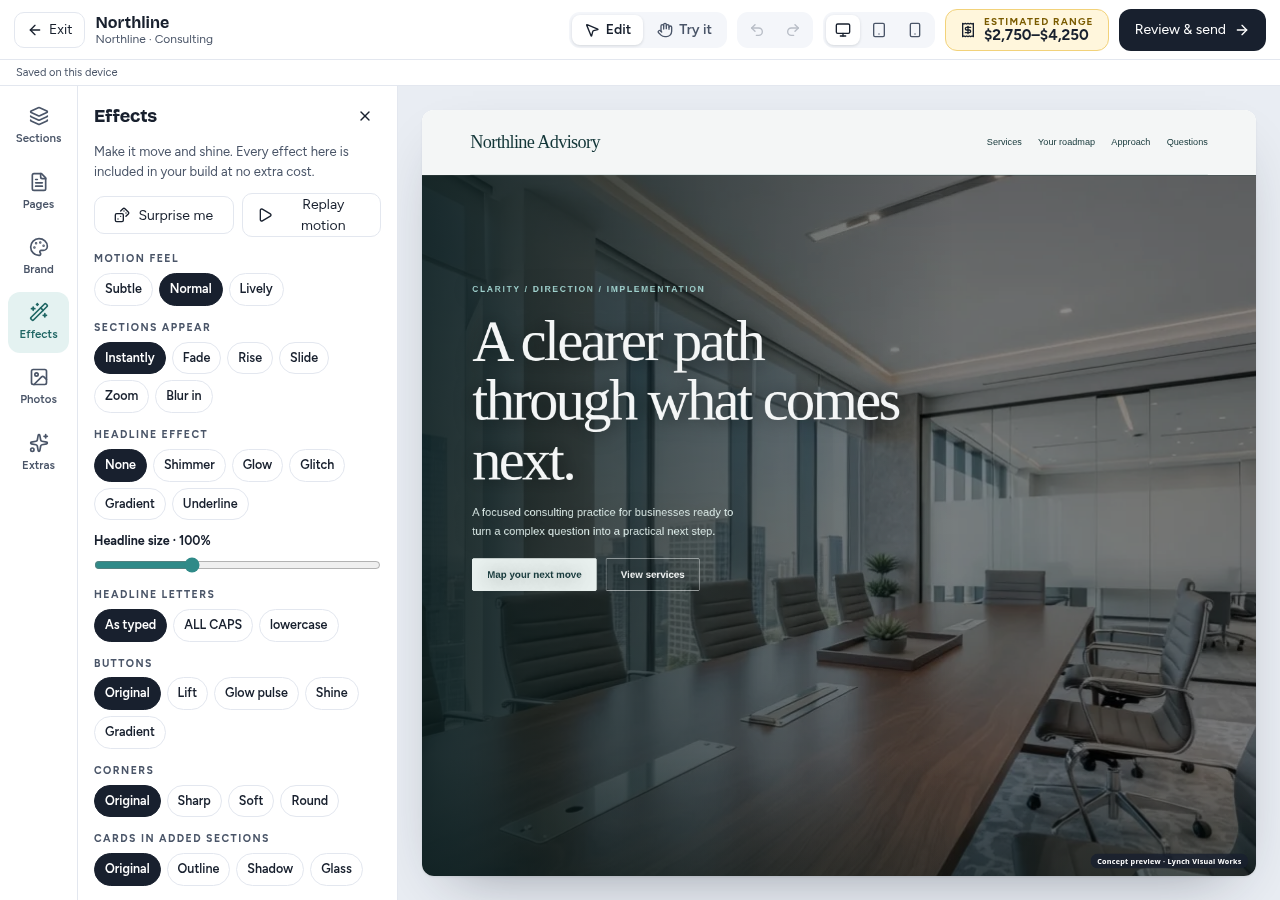
Use Effects to try available treatments and replay motion. Desktop, tablet and phone preview controls help you inspect the design at different widths. On a smaller screen, tools are arranged for that screen. Undo and Redo help reverse changes.
Use effects to support reading and navigation; avoid adding motion to everything.
Review additions and care
Understand what changes the estimate
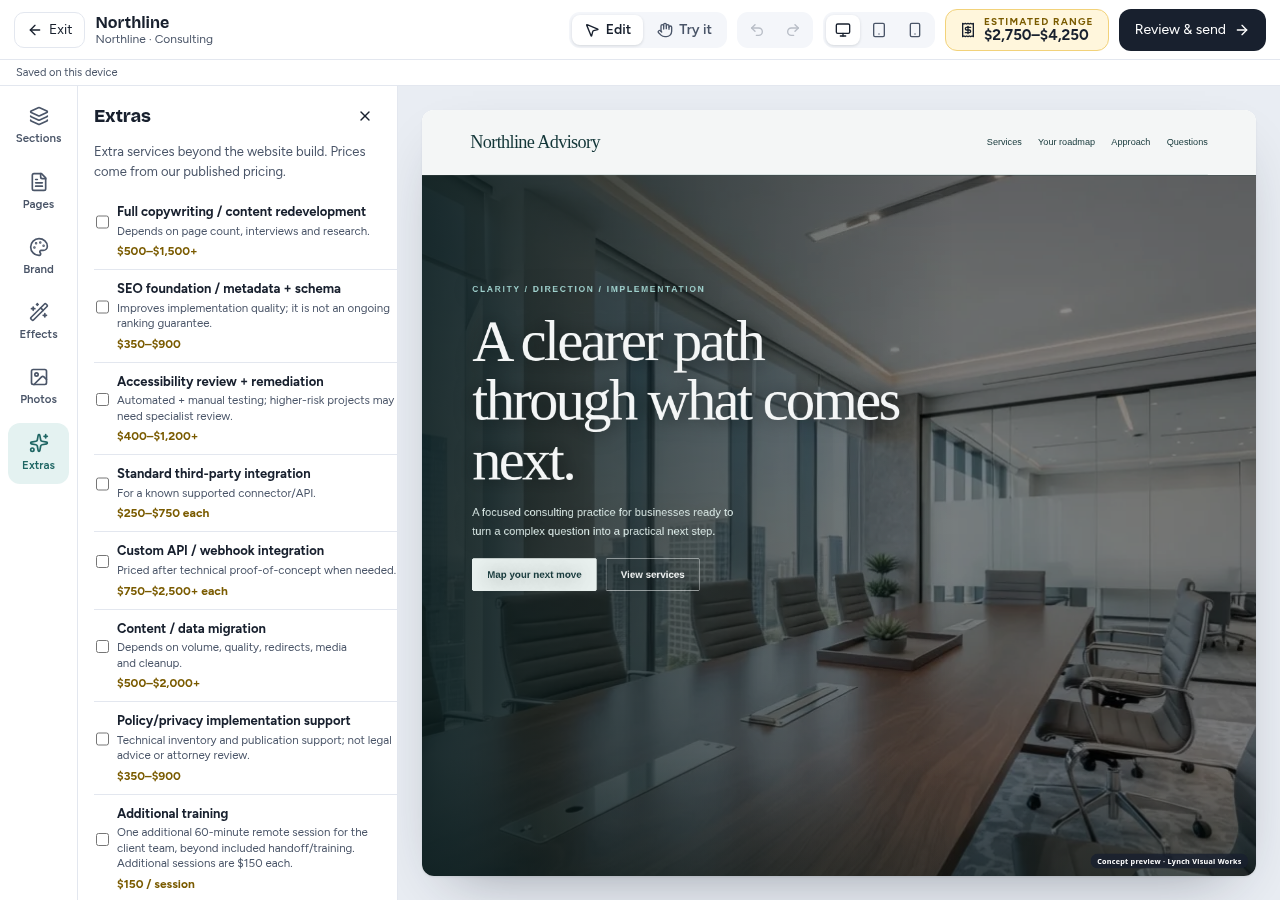
Extras lists additional features and care options. Review the estimated range and any quoted items. Hosting, domains, vendor subscriptions, custom integrations and ongoing work are separate unless explicitly included in the proposal. An estimate is not a quote or a purchase.
Selecting a feature does not automatically connect booking, payment or CRM accounts.
Review your design and plan
Keep the visible design and brief aligned
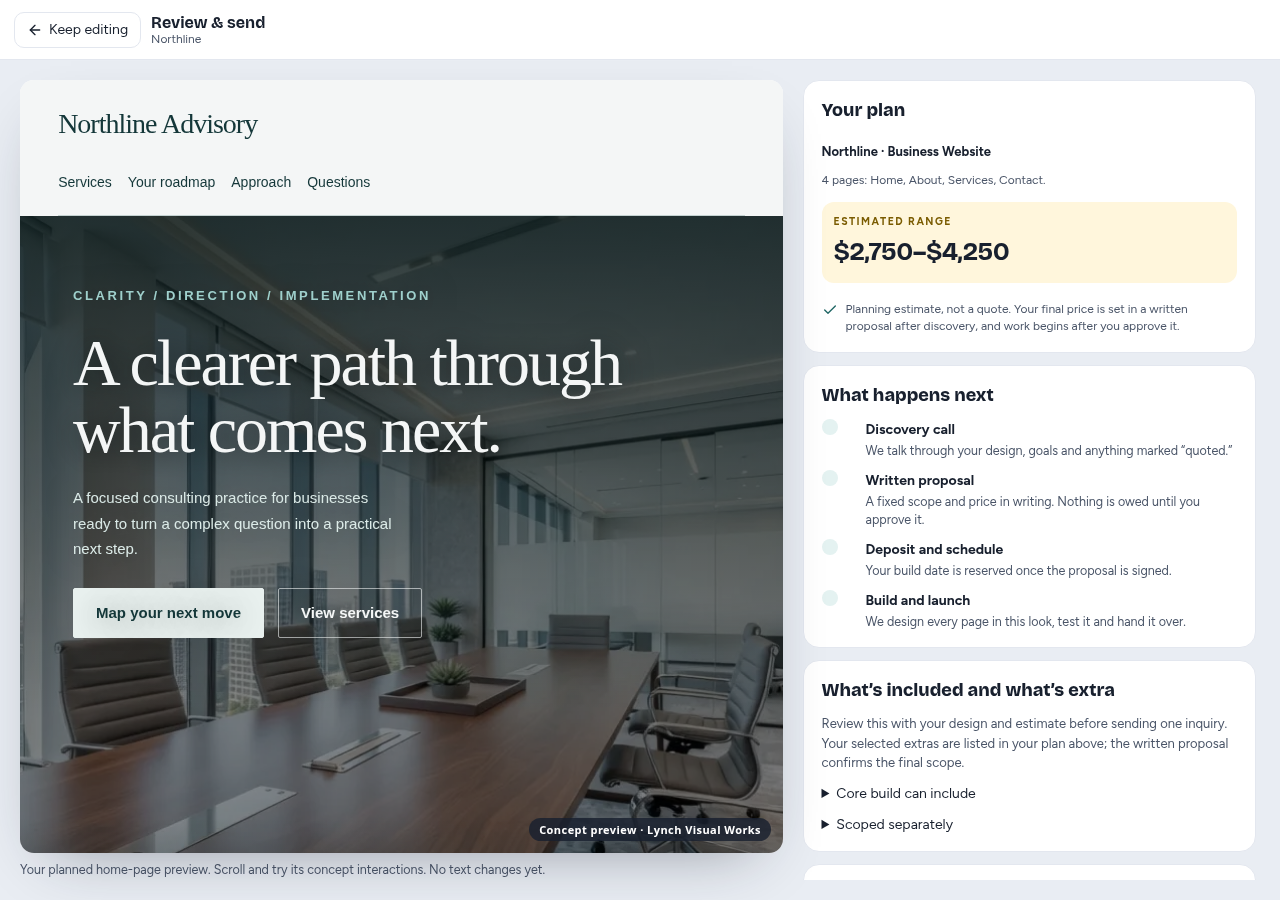
Choose Review & send. Check the design summary, pages, features and estimate. Return to editing if something is wrong. Draft saving is device-specific; check the save status, and keep the tab open if saving is unavailable. A shared link can carry design choices but does not transfer device-local uploaded files.
Save a copy or link before replacing a design with a different starting point.
Read what is included and extra
Scope travels with the design
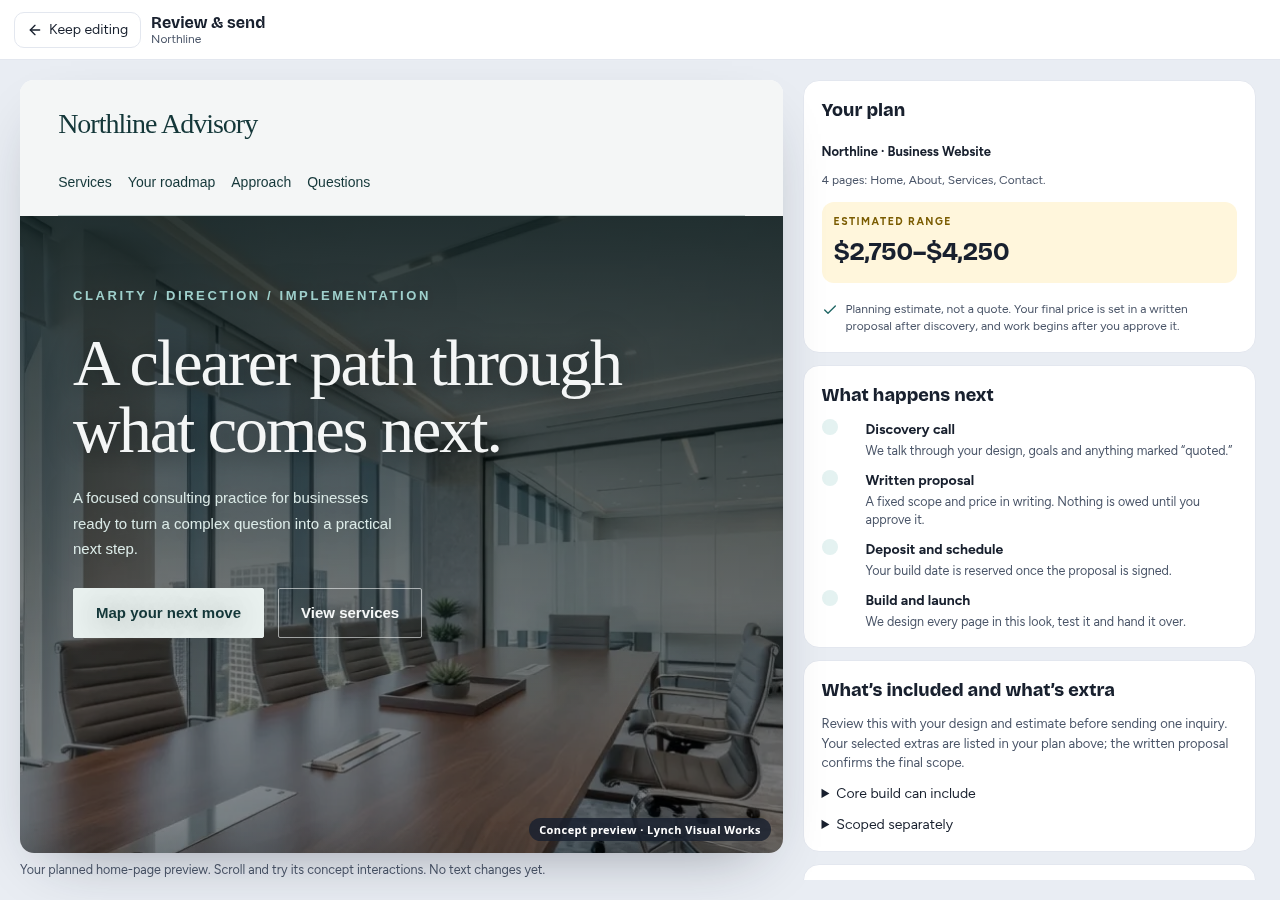
In the final review, expand Core build can include and Scoped separately. This repeats the service-page scope information beside your plan so you can review both before one inquiry. A written proposal confirms the actual deliverables, costs and responsibilities.
The studio is a planning tool; the proposal defines the work.
Send one website inquiry
No automatic launch, checkout or commitment
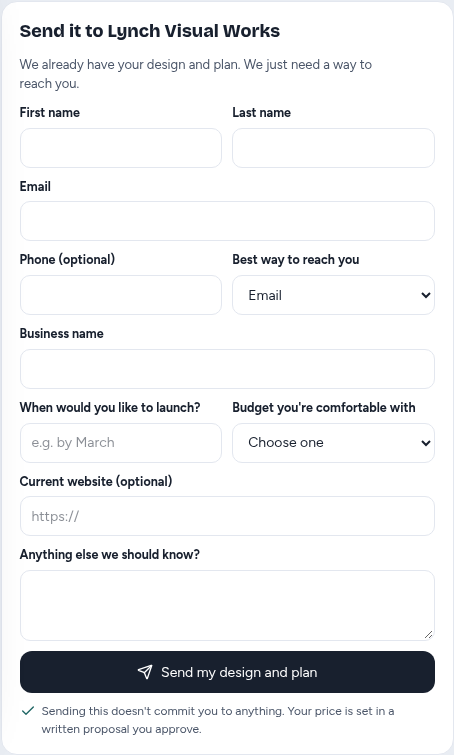
Enter contact details, business name if required, launch timing and a budget range. Choose the final send action once. If the request fails, retain your draft and retry. LVW aims to reply within 36–48 hours; discovery and approval happen before the build is committed or published.
Nothing in this studio sends your design to a live website.